Connect Audioscrape to Claude
Add Audioscrape from the Claude connector directory: one click, sign in, done. It is then available in Claude on the web, in the desktop app, and in Claude Code — everywhere you use the same Anthropic account.
1. Add Audioscrape
Open the Audioscrape entry in the Claude connector directory and click Add (Sign in to add if you are not signed in to Claude yet).
Add Audioscrape to ClaudeYou can also find it inside Claude under Settings → Connectors → Browse connectors. Claude labels it a Community connector — the standard label for every connector not built by Anthropic. Connectors need a Claude Pro, Max, Team, or Enterprise plan.
2. Connect your account
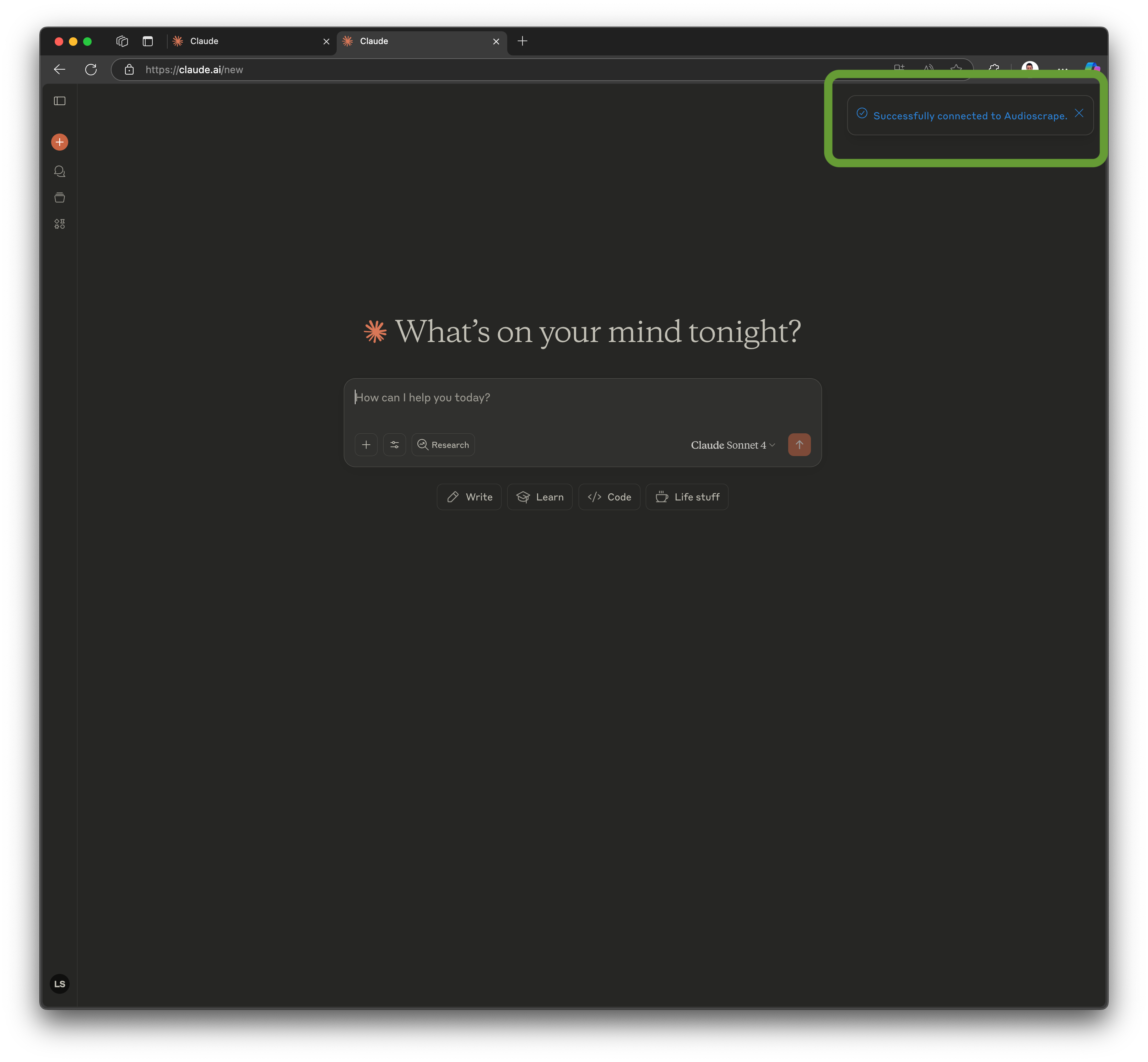
Claude asks you to connect. Sign in with your Audioscrape account — this links your subscription so results respect your access rights. No Audioscrape account yet? Sign up free first.
If you are already signed in on audioscrape.com you go straight to the authorize screen. Otherwise you sign in first — Google or Microsoft is one click. If you use the emailed link instead, open it in the same browser on the same device.
3. Ask
Audioscrape now appears in the "Search and tools" menu of every chat. Just ask — Claude picks it when the question is about something said out loud:
- "What has Sam Altman been saying on podcasts lately? Link me to the exact moments."
- "What are podcasts saying about the Federal Reserve and interest rates? Cite the timestamps."
- "What have city councils been saying about data centers this year?"
Also in Claude Code
The connectors on your Anthropic account are available in Claude Code sessions signed in with that account — there is nothing extra to configure.
Type /mcp in Claude Code to see Audioscrape listed. The Claude Code guide covers uploads from the terminal and the manual registration for accounts that don't use the directory.
What You Can Do
With Audioscrape connected, Claude has access to these tools:
For technical details and API parameters, see the MCP Documentation.
Uploading Audio from Claude
Everything above works with no extra setup — searching, reading transcripts, checking transcription status all run through the connector as-is. To get a recording in, the quickest way needs no setup either: share it from Google Drive, Dropbox or OneDrive with “anyone with the link” and paste the link — “transcribe this with Audioscrape.” Audioscrape fetches the file directly.
One extra permission is needed only if you want Claude to upload a file attached in the chat: Claude uploads from its file workspace, and that workspace can only reach domains you have allowed. Claude tells you this before its first upload attempt; the steps are:
- Open Settings → Create and edit files → Allowed domains (Anthropic's guide)
- Add
mcp.audioscrape.com— the same machine endpoint your connector already talks to. (*.audioscrape.comalso works if you prefer one entry.) - Ask Claude: “transcribe the attached recording with Audioscrape.”
Claude requests a one-time upload address (valid 15 minutes, single use) and puts the file there; transcription starts on arrival and counts against your plan's monthly minutes. If a recording doesn't fit the minutes you have left, Claude is told in the same reply — nothing is queued silently.
Troubleshooting
The directory says "Sign in to add" or Add is disabled
Sign in to Claude first, then click Add. In a Team or Enterprise organization an admin may need to approve connectors — ask them to allow Audioscrape.
I don't see Audioscrape in the "Search and tools" menu
Check Settings → Connectors: Audioscrape should be listed as added and connected. Connectors need a Claude Pro, Max, Team, or Enterprise plan; they are not available on the free tier.
The connection fails when I click Connect
Ensure you have an active Audioscrape account. If you're not logged in, sign in here first.
How do I remove it?
Go to Settings → Connectors, find Audioscrape, click the three dots menu, and select "Remove". Updates to the connector arrive automatically.
My organization manages connectors, or I run my own Audioscrape server
Add it by hand instead: Settings → Connectors → Add custom connector, with https://mcp.audioscrape.com as the URL. The sign-in step is the same.
Need help? Contact us at [email protected]
Add Audioscrape to Claude